
QR Payment · Pay in store
Pay at stores and restaurants
Pay at participating stores and restaurants in seconds by scanning a QR code with your City Wallet balance. No cash, no card — and every payment is recorded in the app.
Step-by-step guide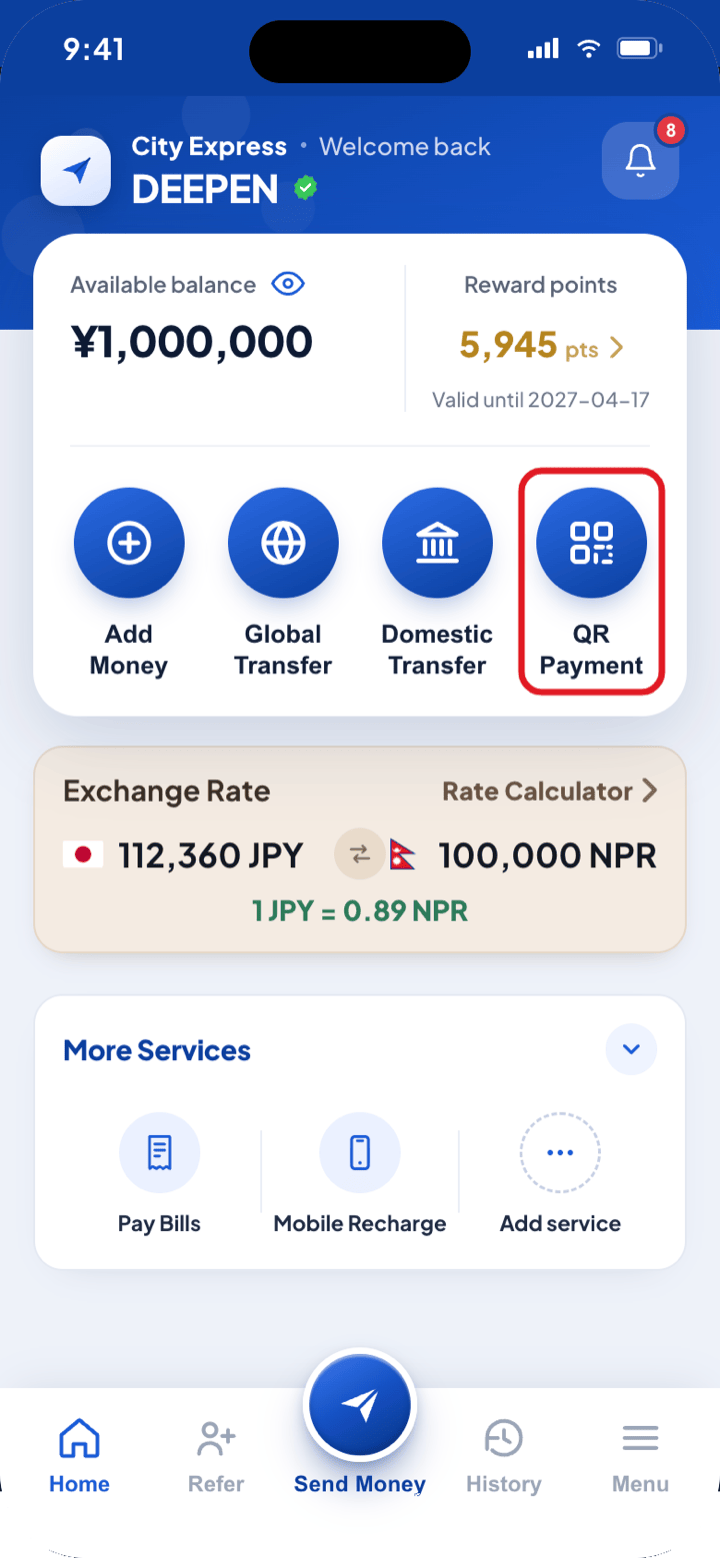
Paying in store by QR code
Five steps from opening the app to showing the staff your confirmation.
Step 1
1
Open the app dashboard
- i.Log in to the City Express app. The dashboard shows your available balance — check it before you pay.
- ii.Among the quick actions under your balance, tap QR Payment.
NoteIf your balance is short, tap Add Money first — you can top up by QR at a Seven Bank ATM or with your City Wallet Card.
Step 2
2
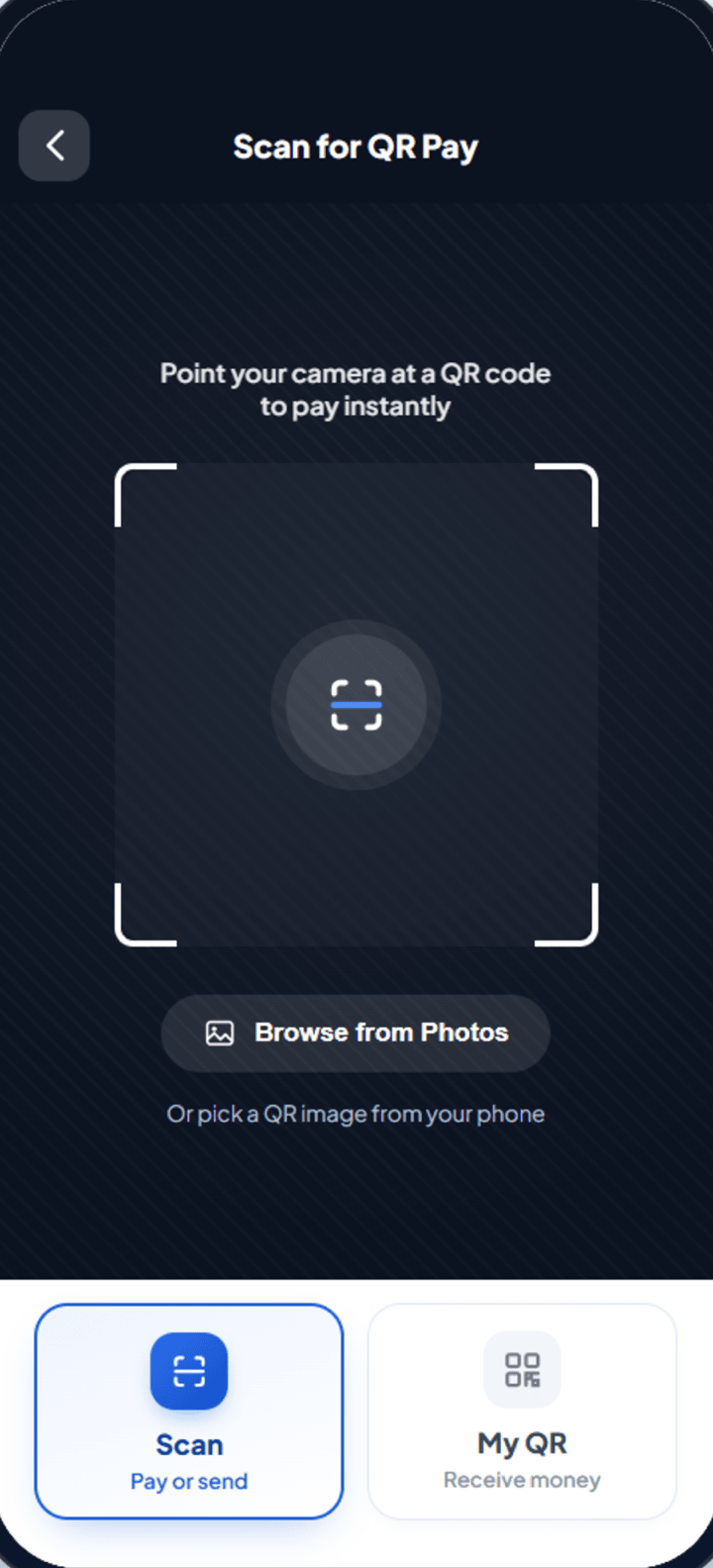
Scan the store’s QR code
- i.Make sure the Scan (pay or send) tab at the bottom is selected.
- ii.Point your camera at the City Express QR code displayed at the till or on the table.
- iii.If you photographed the code, tap Browse from Photos to use the saved image instead.
Step 3
3
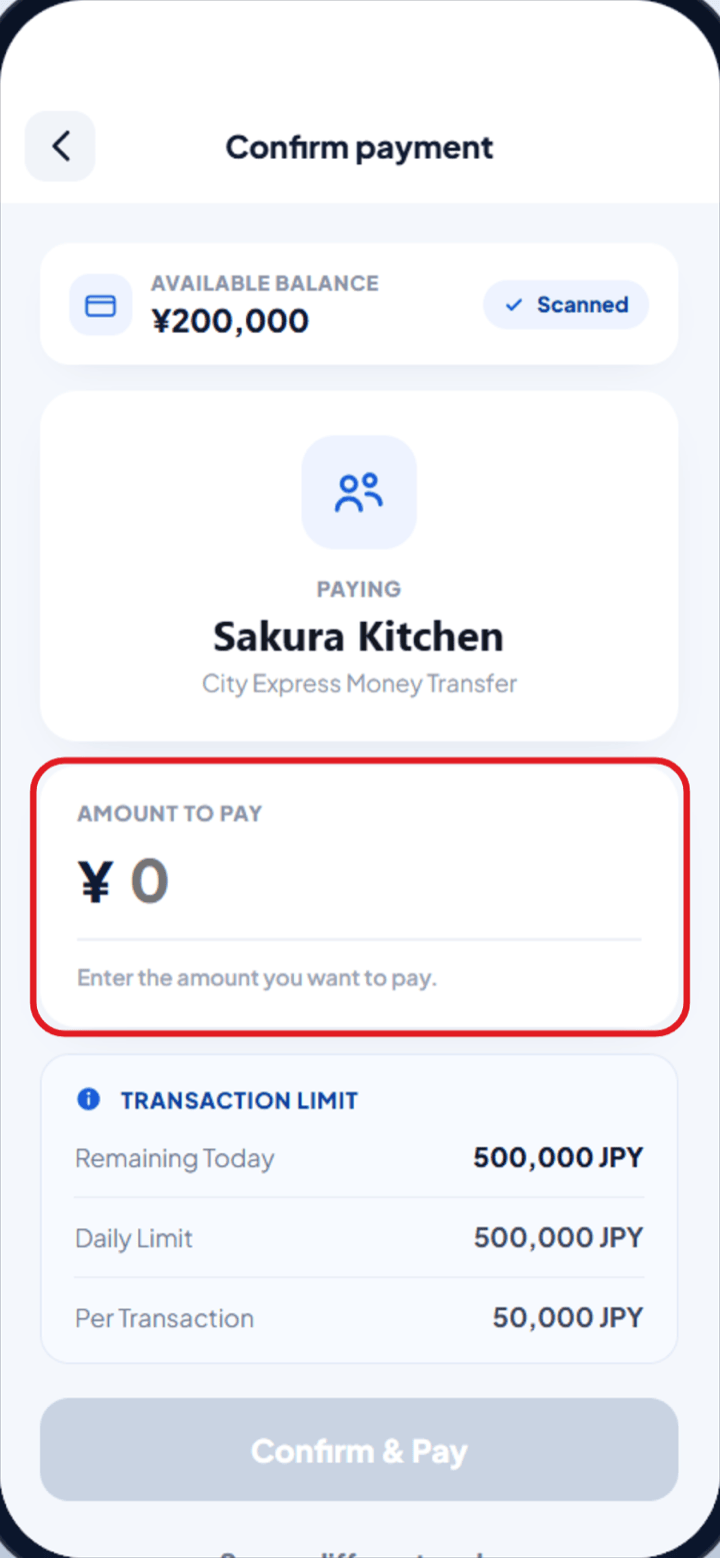
Check the store and enter the amount
- i.Once the code is read, the merchant’s name appears on screen — check you are paying the right store.
- ii.Enter the amount to pay. If the store’s QR code already carries the amount, it is filled in for you.
NoteEven when the amount is filled in automatically, check it against the amount shown at the till.
Step 4
4
Confirm and pay
- i.On the confirmation screen, check the merchant, the amount and the withdrawal account (City Express Wallet).
- ii.If everything is correct, confirm the payment — it is taken from your wallet balance immediately.
Step 5
5
Show the confirmation to the staff
- i.The completion screen shows the amount, the merchant and your Transaction Number.
- ii.Show this screen to the member of staff so they can confirm the payment.
- iii.Every payment stays available under History in the app.