Send to a bank account in Japan
Send straight from your City Wallet balance into any bank account in Japan. The receiver does not need to be a City Express customer, which makes it right for rent, bills, paying a company, or anyone who wants the money in their own bank. You will need the bank, branch, account number and account name. Transfers made inside banking hours arrive the same day; anything sent outside them is transferred on the next business day.
Sending to a bank account from the app
Eight steps from your City Wallet balance to money in a Japanese bank account.
Open the app dashboard
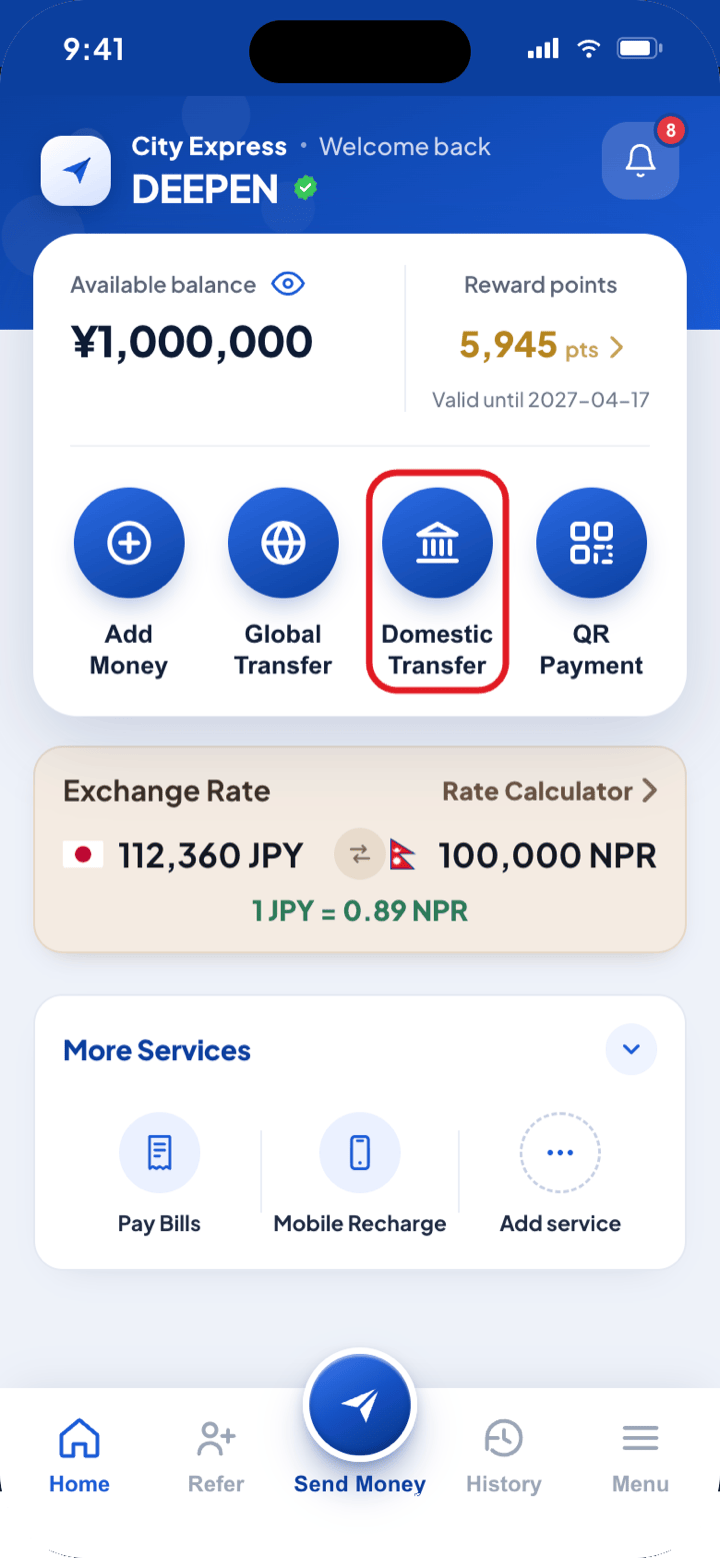
- i.Log in to the City Express app. The dashboard shows your available balance, reward points and today’s exchange rate.
- ii.Among the quick actions under your balance — Add Money, Global Transfer, Domestic Transfer and QR Payment — tap Domestic Transfer.
Choose where the money goes
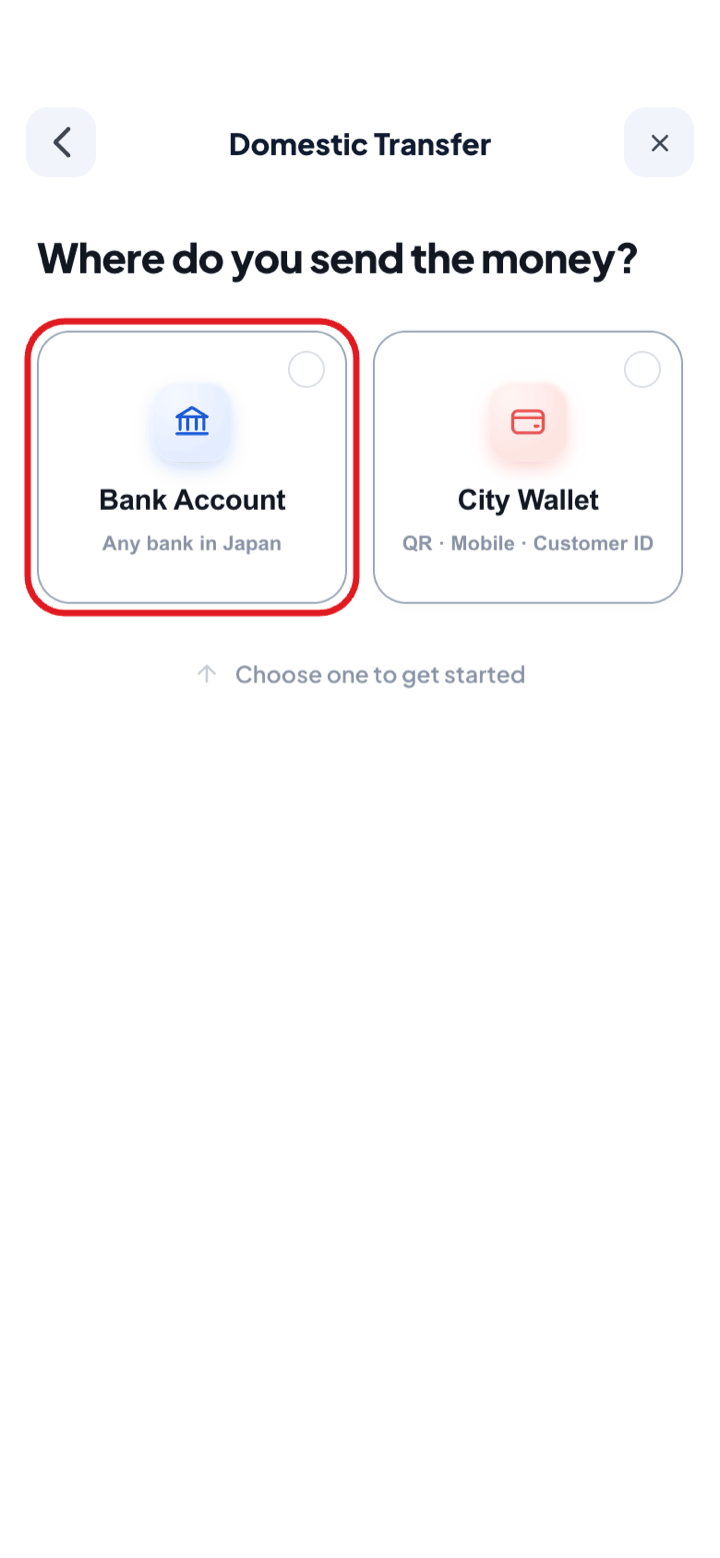
- i.The “Where do you send the money?” screen opens.
- ii.Choose Bank Account — any bank in Japan.
Choose an account
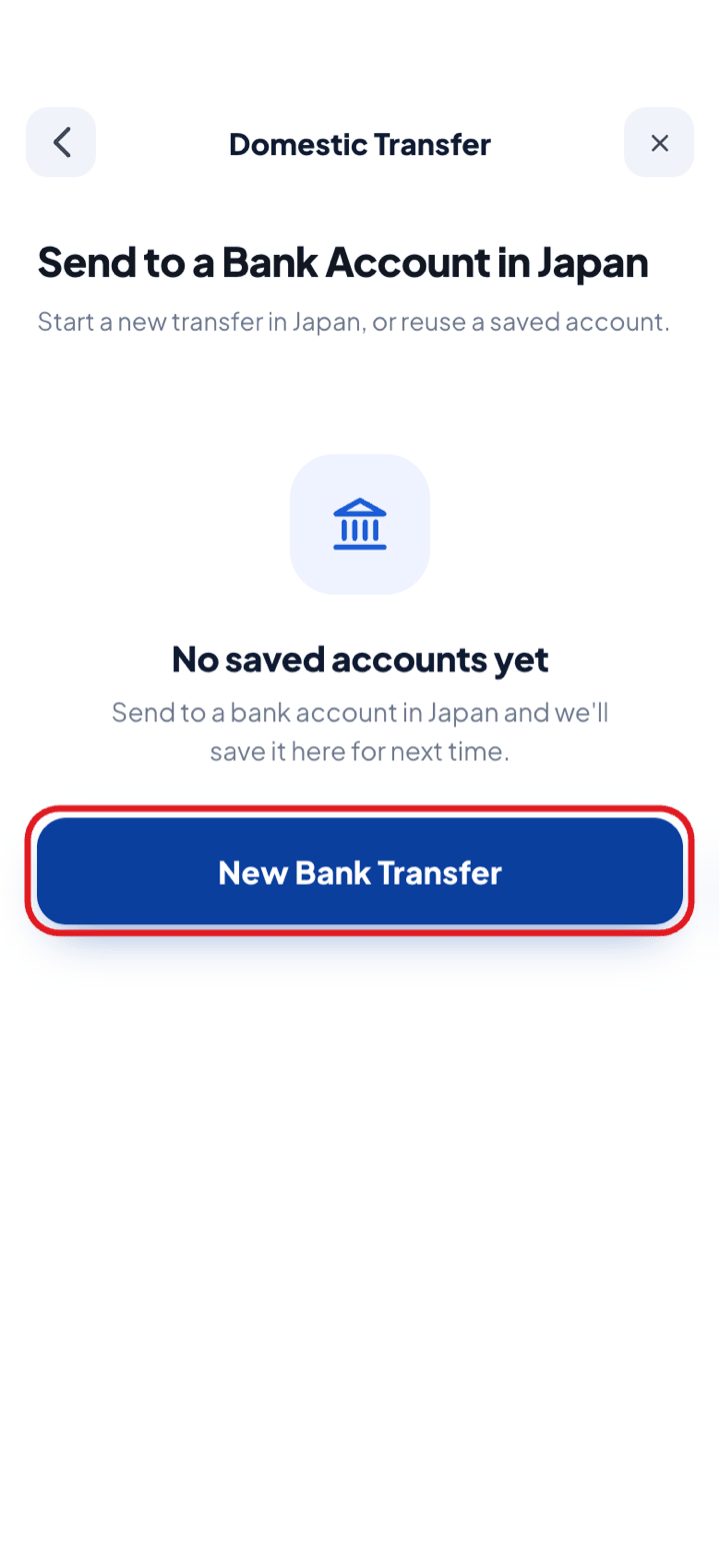
- i.The Send to a Bank Account in Japan screen opens.
- ii.Tap a saved account to reuse it, or tap New Bank Transfer the first time — accounts are saved for next time.
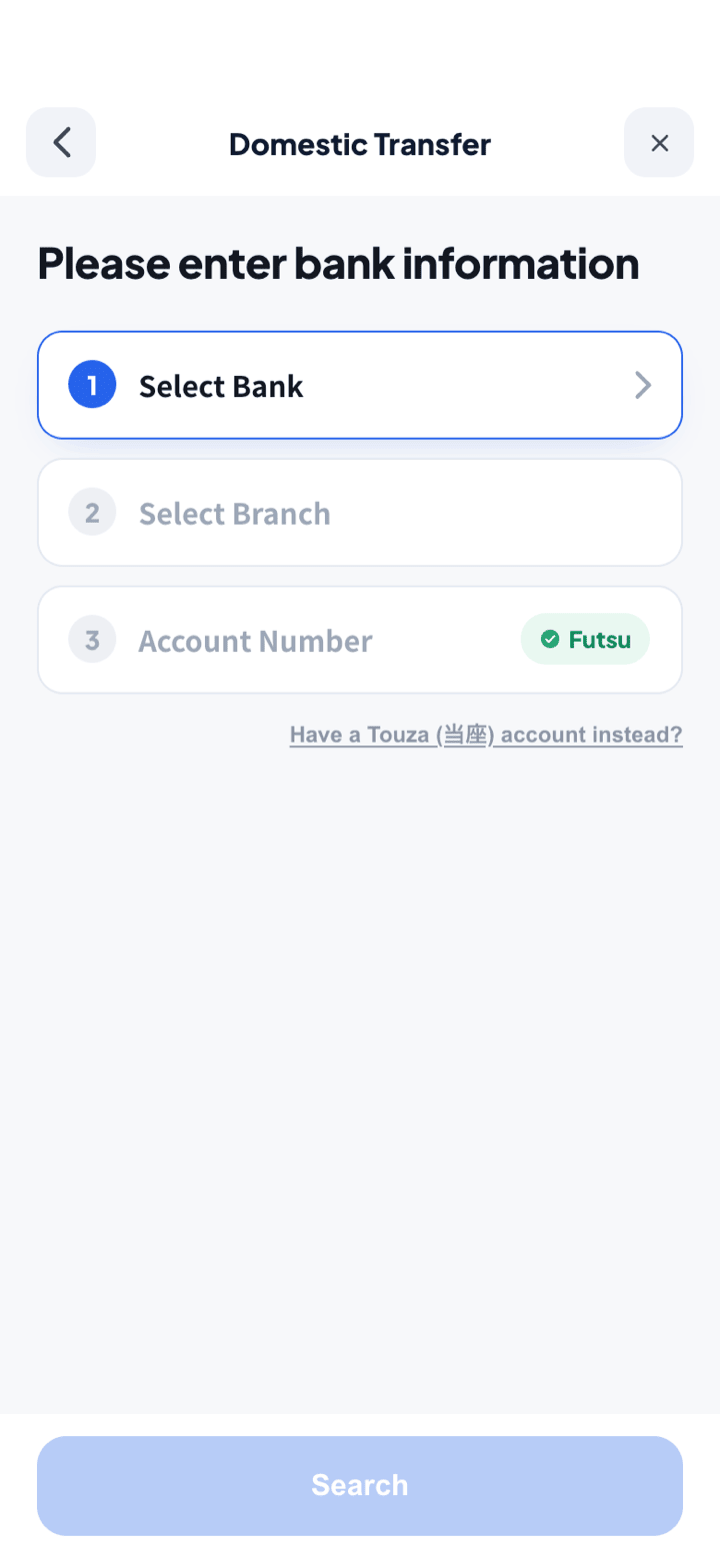
Please enter bank information
- i.Tap Select Bank. The app shows your most used banks, a search by bank name or bank code, and View all banks for the full list of about 1,000.
- ii.Tap Select Branch to pick the branch. For Japan Post Bank, enter the 5-digit symbol code (記号) instead.
- iii.Enter the Account Number. Futsu (普通) is selected by default — use “Have a Touza (当座) account instead?” to switch.
- iv.The Search button activates once all three fields are filled.
NoteThe account details must match your CityExpress profile — update your profile first if they do not.
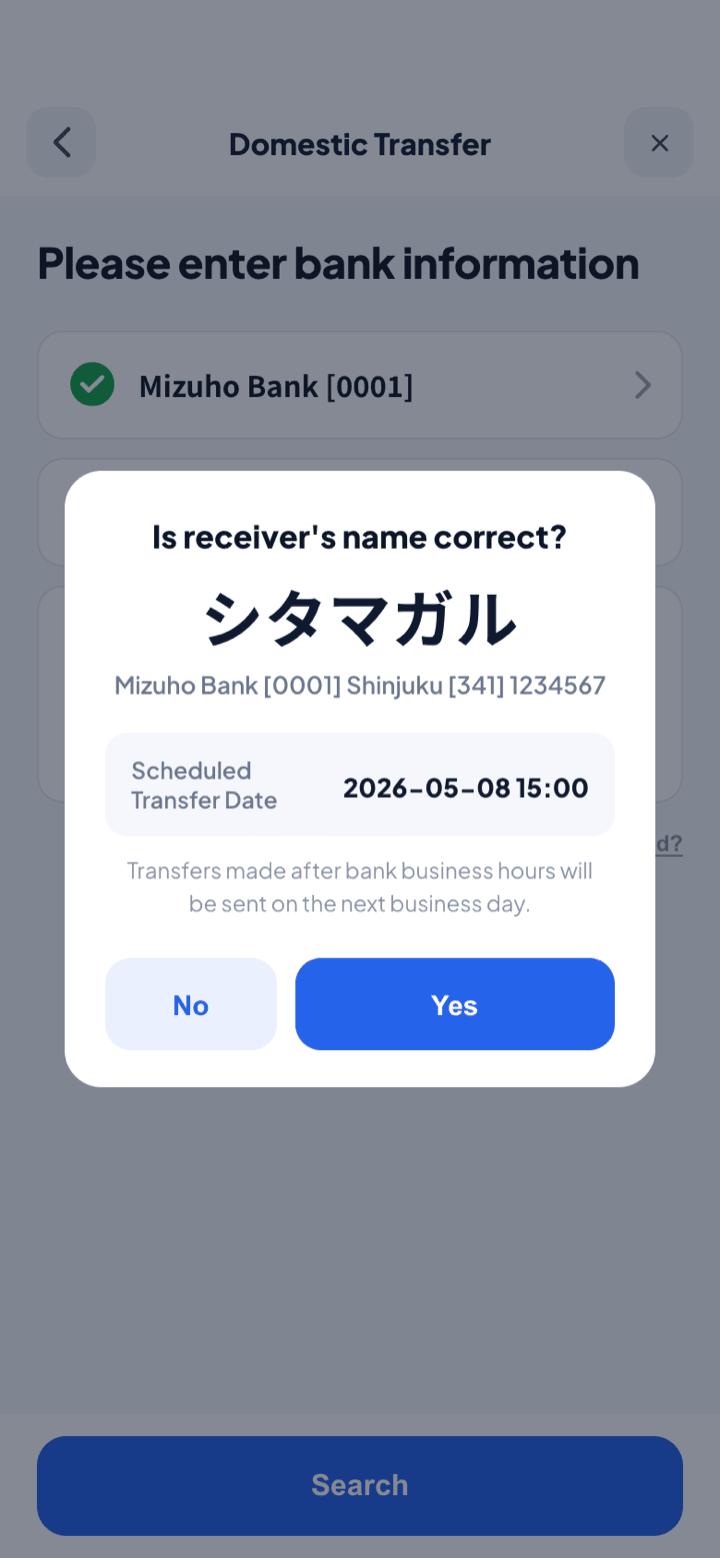
Check the receiver’s name
- i.The app asks “Is receiver’s name correct?” and shows the account holder’s name, bank, branch, account number and the scheduled transfer date.
- ii.Tap Yes to continue, or No to go back and correct the details.
NoteIf the name does not match your receiver, do not continue — the transfer cannot be completed.
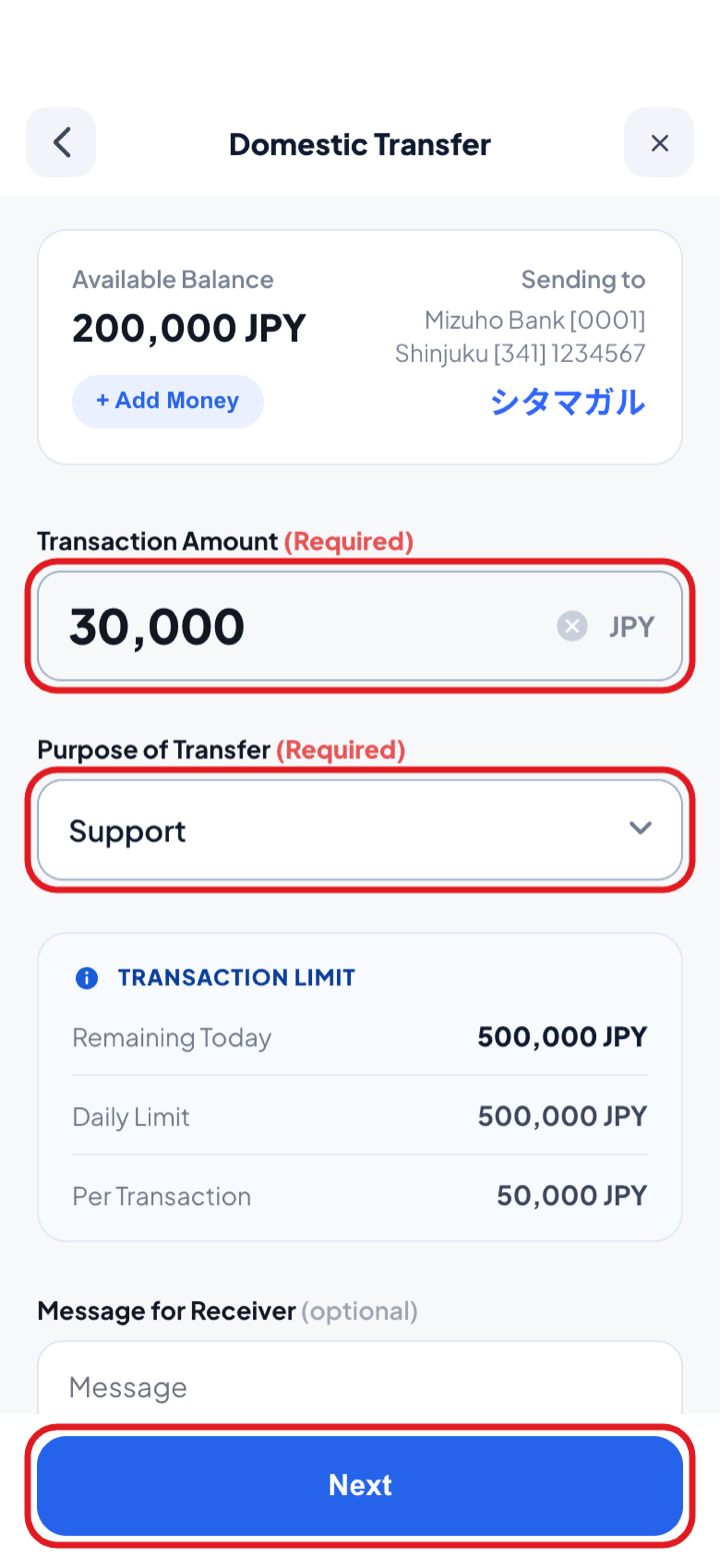
Enter the amount
- i.Check your Available Balance and who you are sending to, then type the amount under Transaction Amount.
- ii.Choose the Purpose of Transfer (required) and add a Message for Receiver if you want (optional).
- iii.The Calculation Summary shows the total withdrawal amount, total receive amount and sending fee. Transaction Limit shows how much you have left today against your daily limit.
NoteThe app flags it immediately if the amount exceeds your per-transaction or daily limit. If your balance is short, add money first.
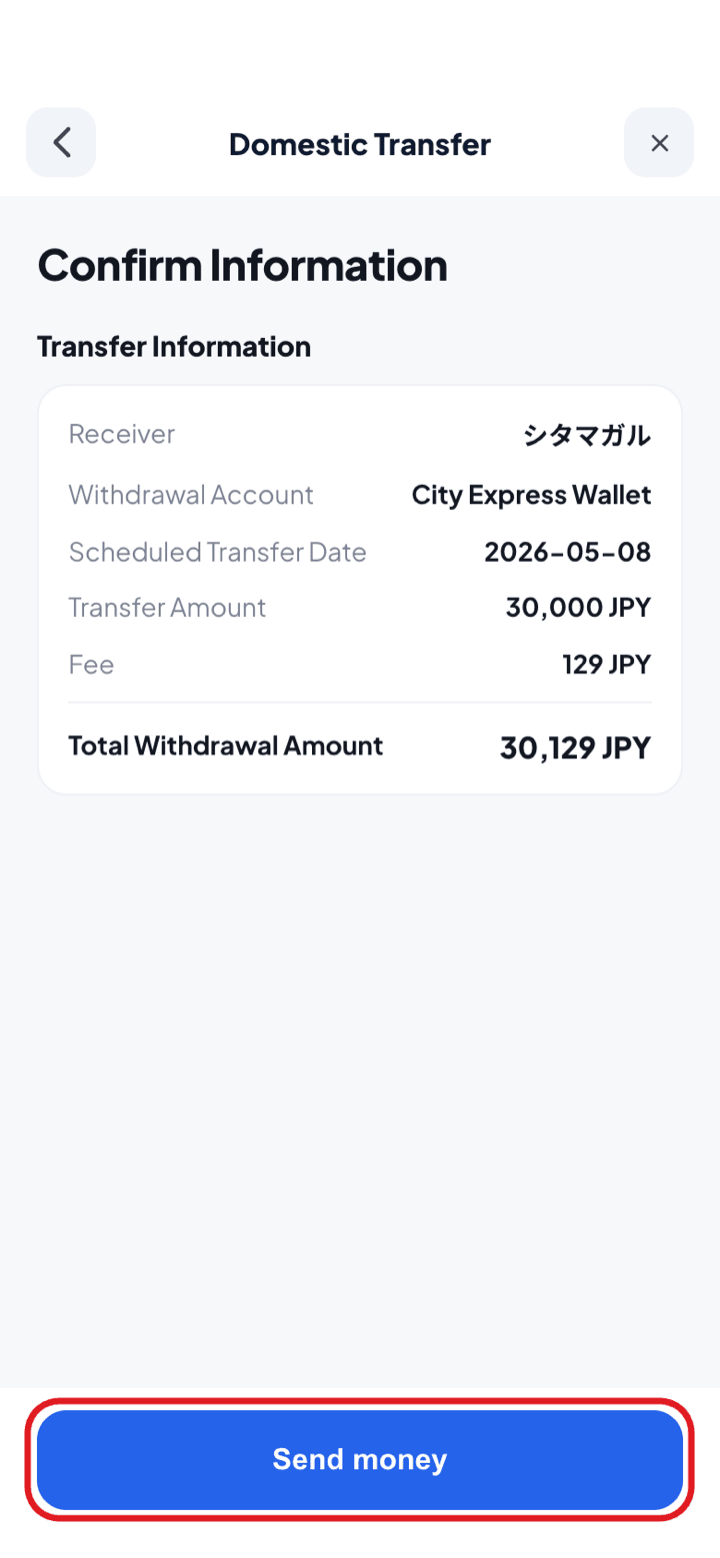
Confirm the information
- i.On Confirm Information, check the receiver, withdrawal account (City Express Wallet), Scheduled Transfer Date, transfer amount and fee.
- ii.If everything is correct, confirm the transfer.
NoteInside banking hours your transfer is sent instantly; transfers made after bank business hours are sent on the next business day.
Sent — save the receipt
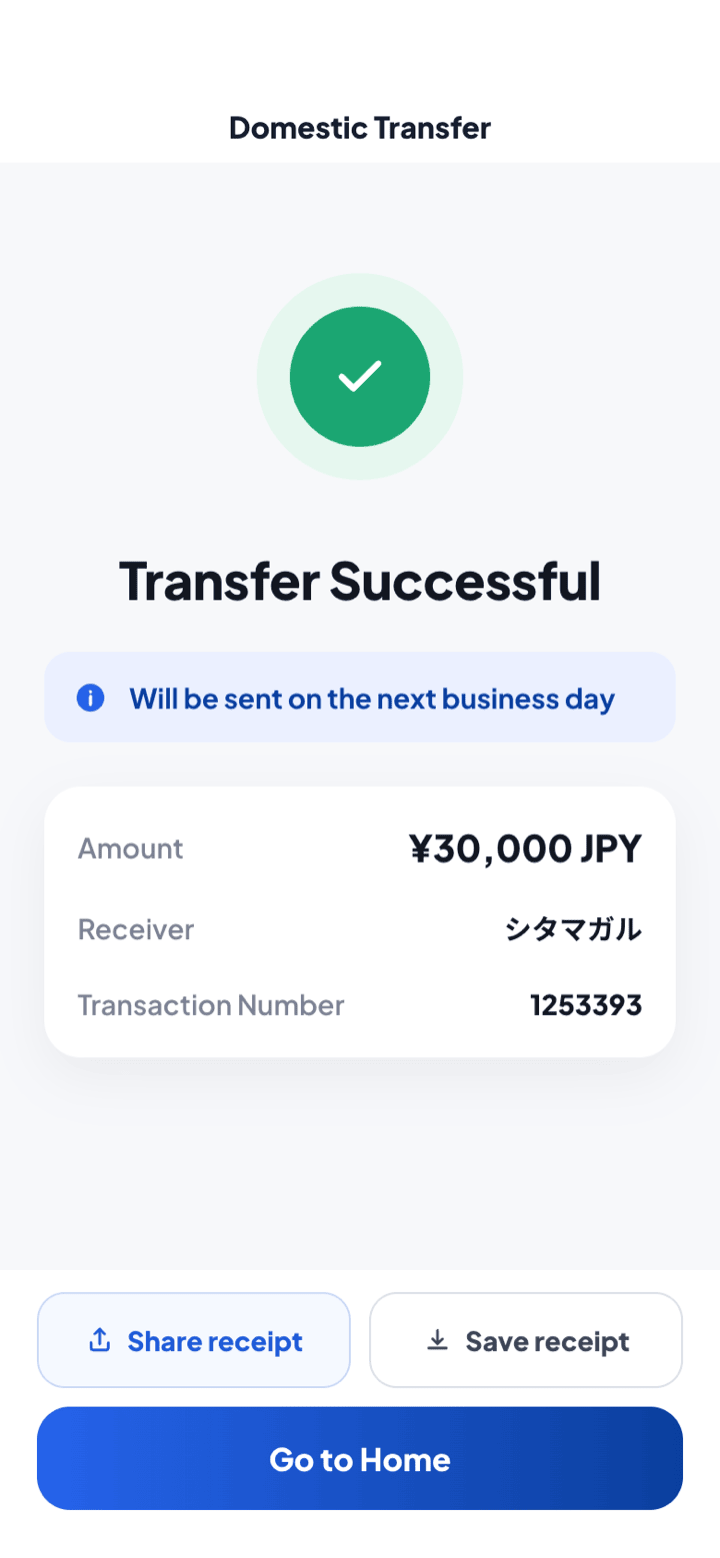
- i.The completion screen shows your Transaction Number.
- ii.Share or save the receipt; every transfer stays under History.
- iii.If a transfer can still be cancelled you see Cancellation Completed with the refunded amount and time; once processed it shows Already Transferred and cannot be cancelled.