
City Wallet · Scan QR Code
Send by scanning a QR code
The fastest way when you are together in person — point your camera at the receiver’s City Wallet QR code and the app fills in everything. Nothing to type, no ID or number to remember.
Step-by-step guide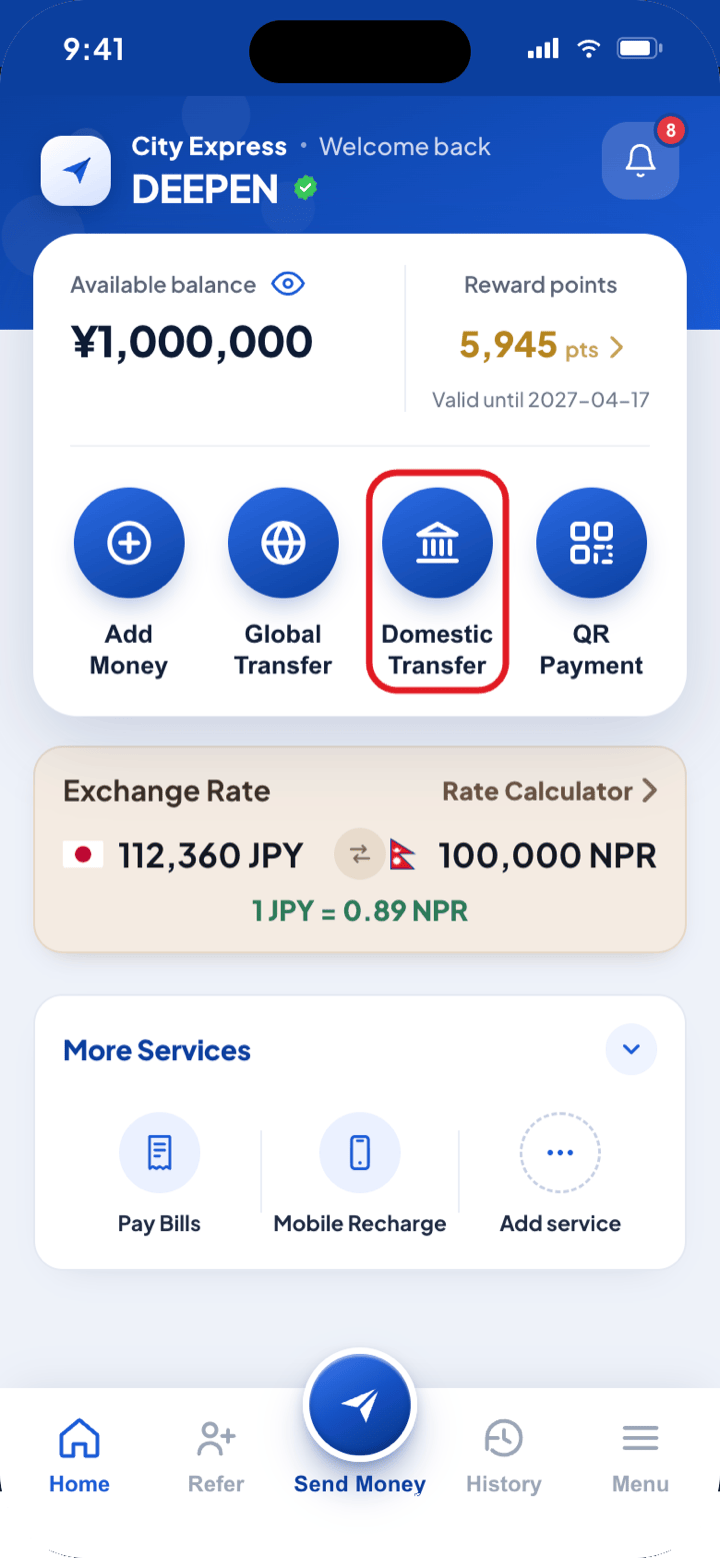
Sending by QR code
Eight steps from your City Wallet balance to money in your receiver’s wallet.
Step 1
1
Open the app dashboard
- i.Log in to the City Express app. The dashboard shows your available balance, reward points and today’s exchange rate.
- ii.Among the quick actions under your balance, tap Domestic Transfer.
Step 2
2
Choose City Wallet
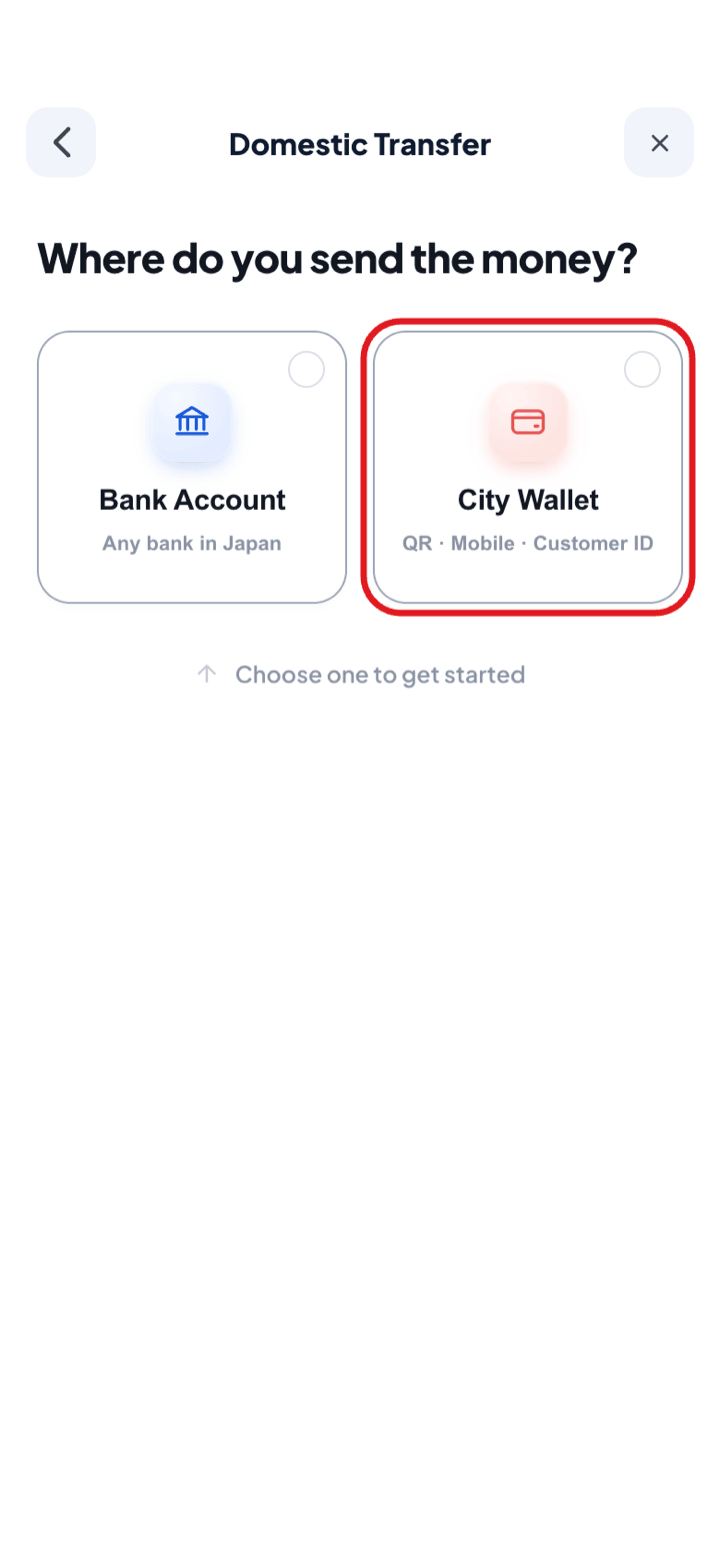
- i.The “Where do you send the money?” screen opens.
- ii.Choose City Wallet — QR, mobile or Customer ID.
Step 3
3
Choose how to find the receiver
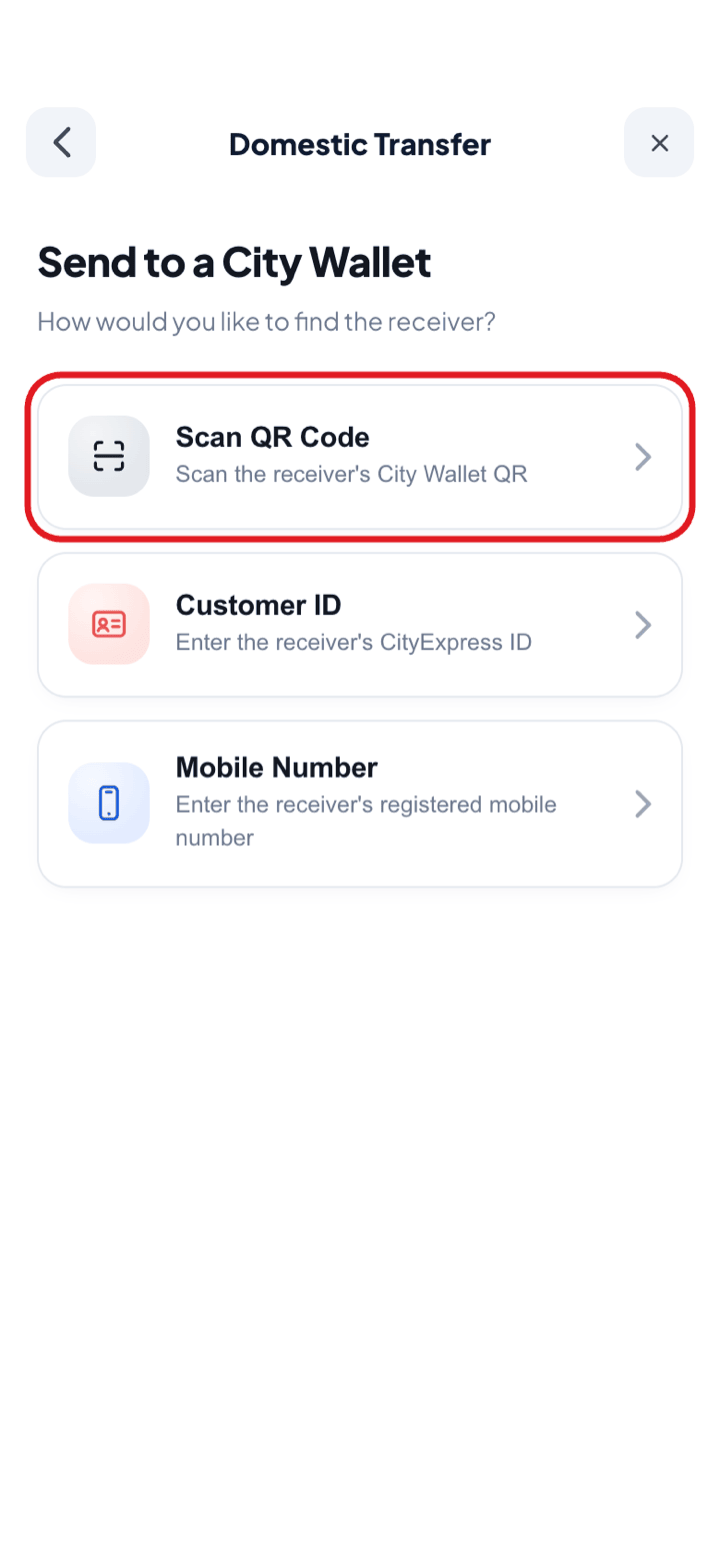
- i.The app offers three ways under “How would you like to find the receiver?”
- ii.Scan QR Code — read the receiver’s City Wallet QR. Best in person.
- iii.Customer ID — enter the 8 digits after CT. Best for someone not with you.
- iv.Mobile Number — enter their registered number. Works even if they have no account.
NoteFor this guide, choose Scan QR Code. The amount, fee and speed are identical whichever you pick.
Step 4
4
Scan the QR code
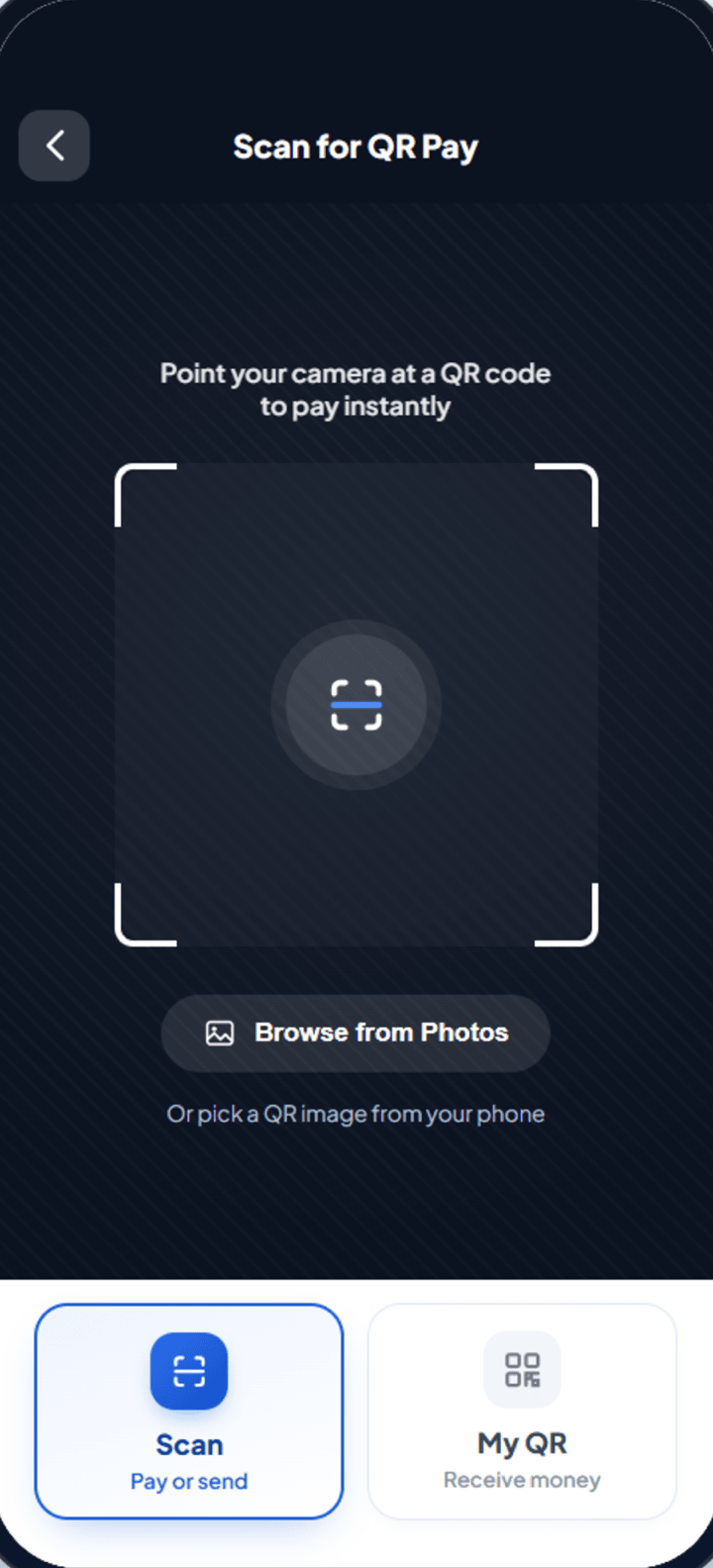
- i.Choosing Scan QR Code opens the QR Pay screen. It has two tabs at the bottom — Scan (pay or send) and My QR (receive money).
- ii.To send money, tap the Scan tab — the camera opens, and you point it at the receiver’s City Wallet QR code.
- iii.Or tap Browse from Photos to read a QR image saved on your phone.
NoteThe My QR tab is for receiving — it shows your own QR code and Customer ID. When you are sending, make sure the Scan tab is selected.
Step 5
5
Confirm the receiver
- i.The app shows the receiver’s name and mobile number.
- ii.Answer “Is this your receiver?” with Yes, Continue.
Step 6
6
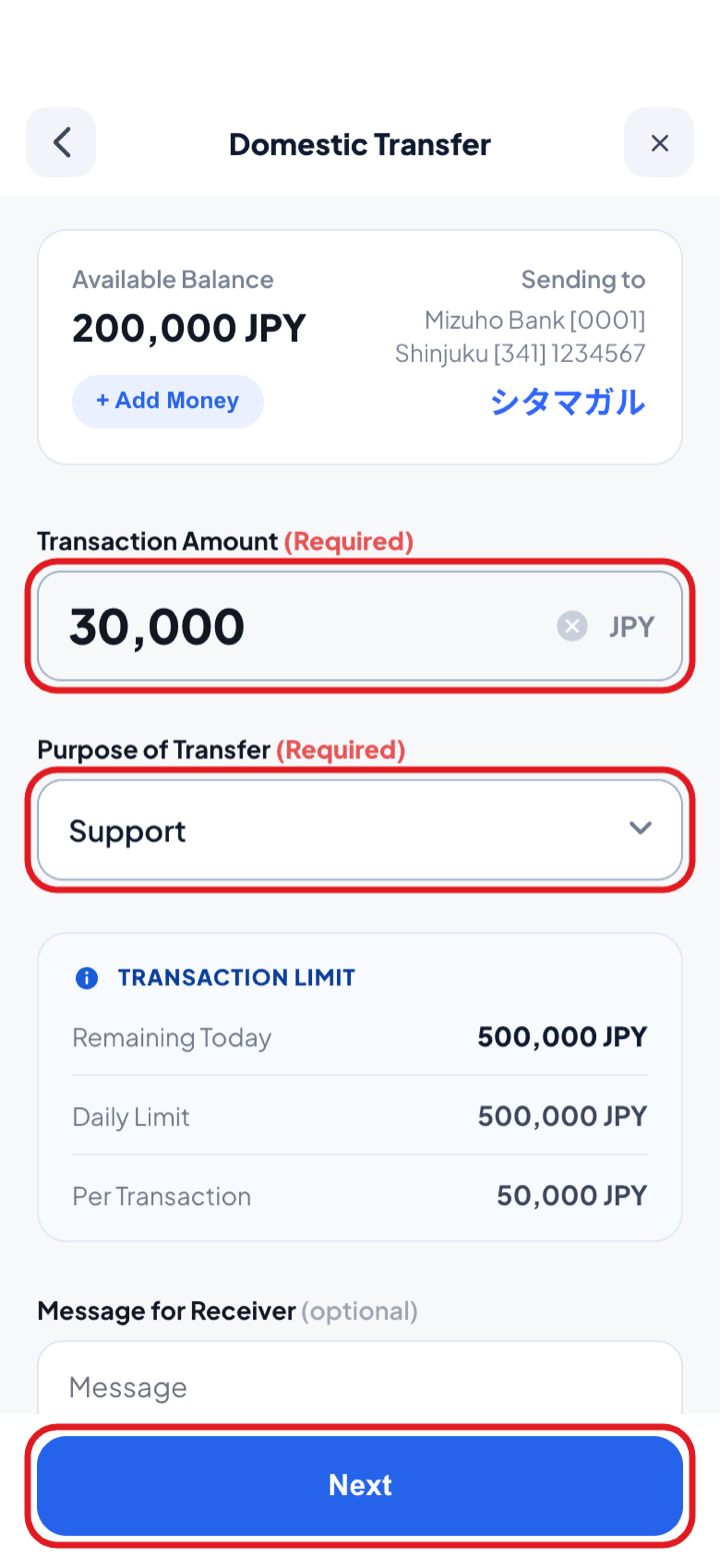
Enter the amount
- i.Check your Available Balance and who you are sending to, then type the amount under Transaction Amount.
- ii.Choose the Purpose of Transfer (required), add a Message for Receiver if you want, then tap Next.
NoteTransaction Limit shows what is left today, your daily limit and the per-transaction limit.
Step 7
7
Confirm the information
- i.Check the receiver, withdrawal account (City Express Wallet), scheduled transfer date, amount and fee.
- ii.If everything is correct, tap Send money.
Step 8
8
Money sent — save the receipt
- i.Transfer Successful shows the amount, receiver and Transaction Number.
- ii.Wallet-to-wallet transfers usually arrive within minutes.
- iii.Use Share receipt or Save receipt, then Go to Home.